

Invite your team
Staff users and external users
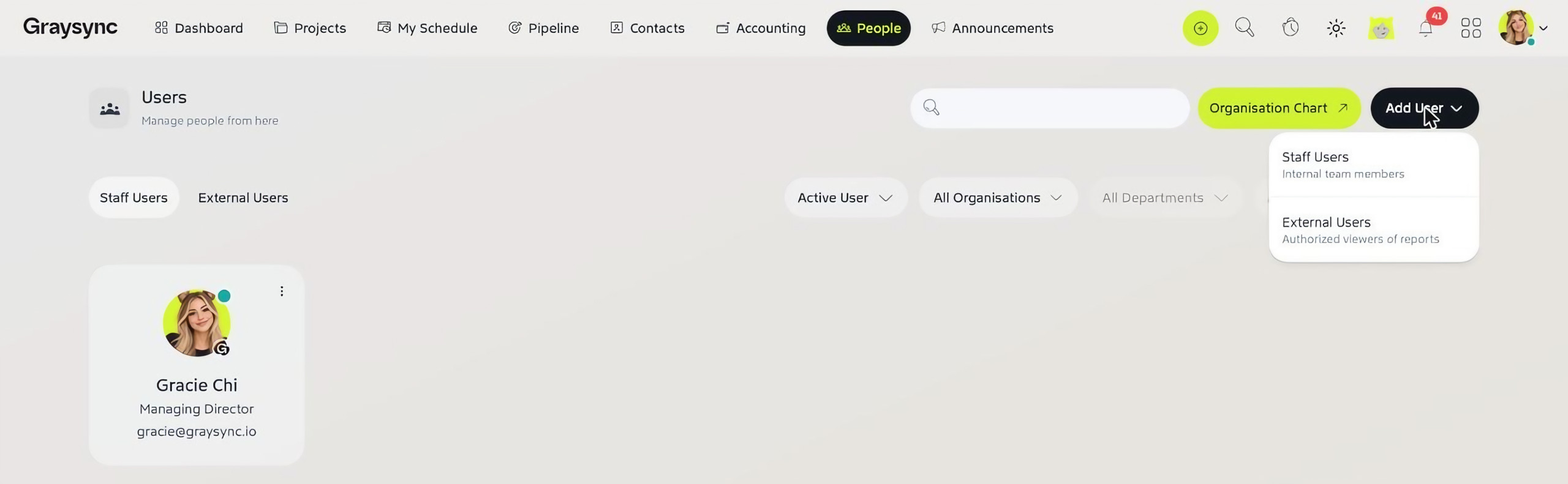
Graysync has two kinds of users, both managed from People → Users:
- Staff Users – your internal team members.
- External Users – authorised viewers of reports, such as clients or partners.
Step 1: Start a new staff user
- Go to People → Users, or use Quick Add → Add Users.
- Click Add User and choose Staff Users.
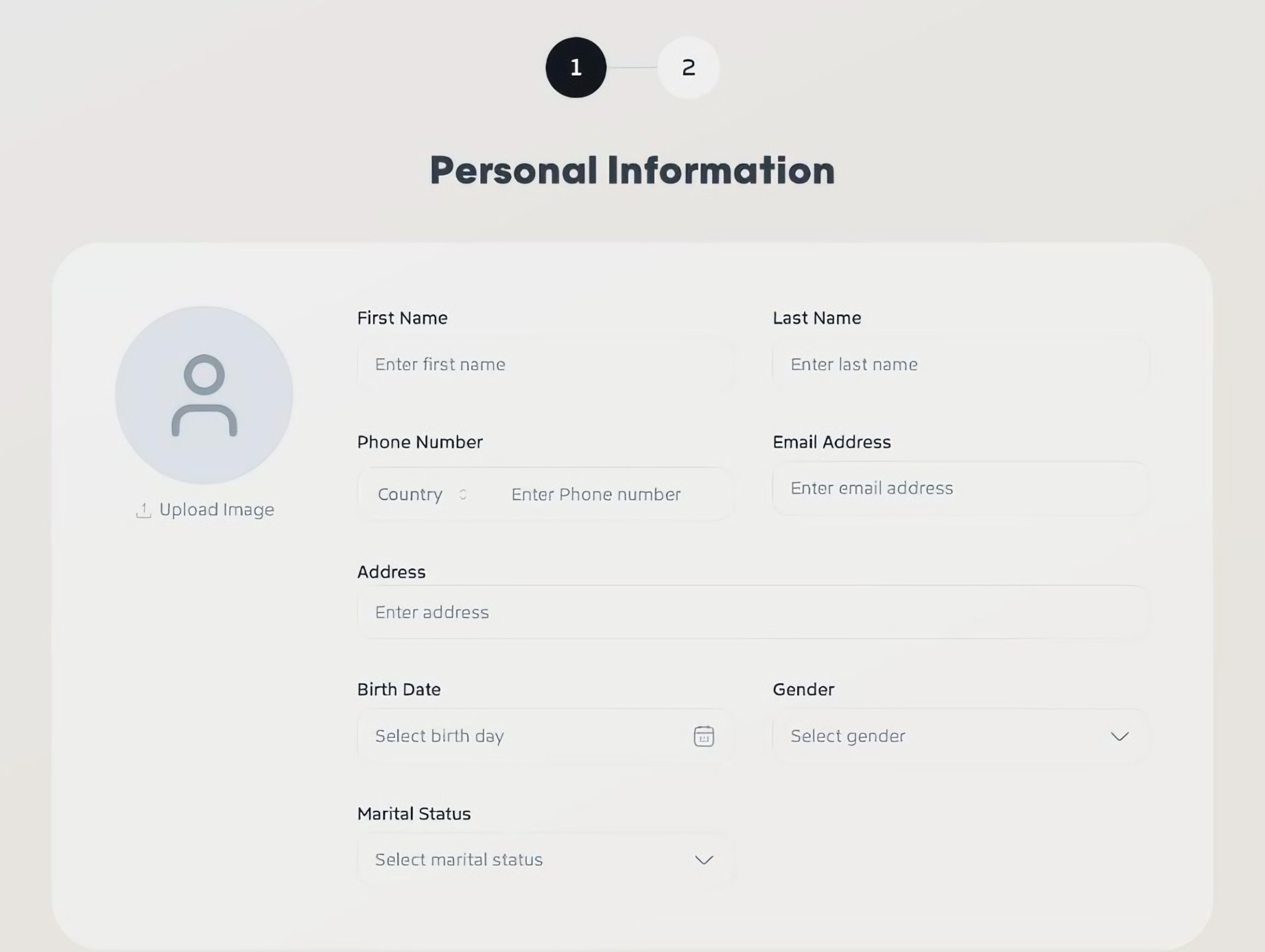
Step 2: Add their personal information
Fill in their First Name, Last Name, Phone Number, Email Address, Address, Birth Date, Gender and Marital Status, and upload a photo if you have one. Each of these fields needs to be filled in before you can continue. Click Next.
Step 3: Add their job information
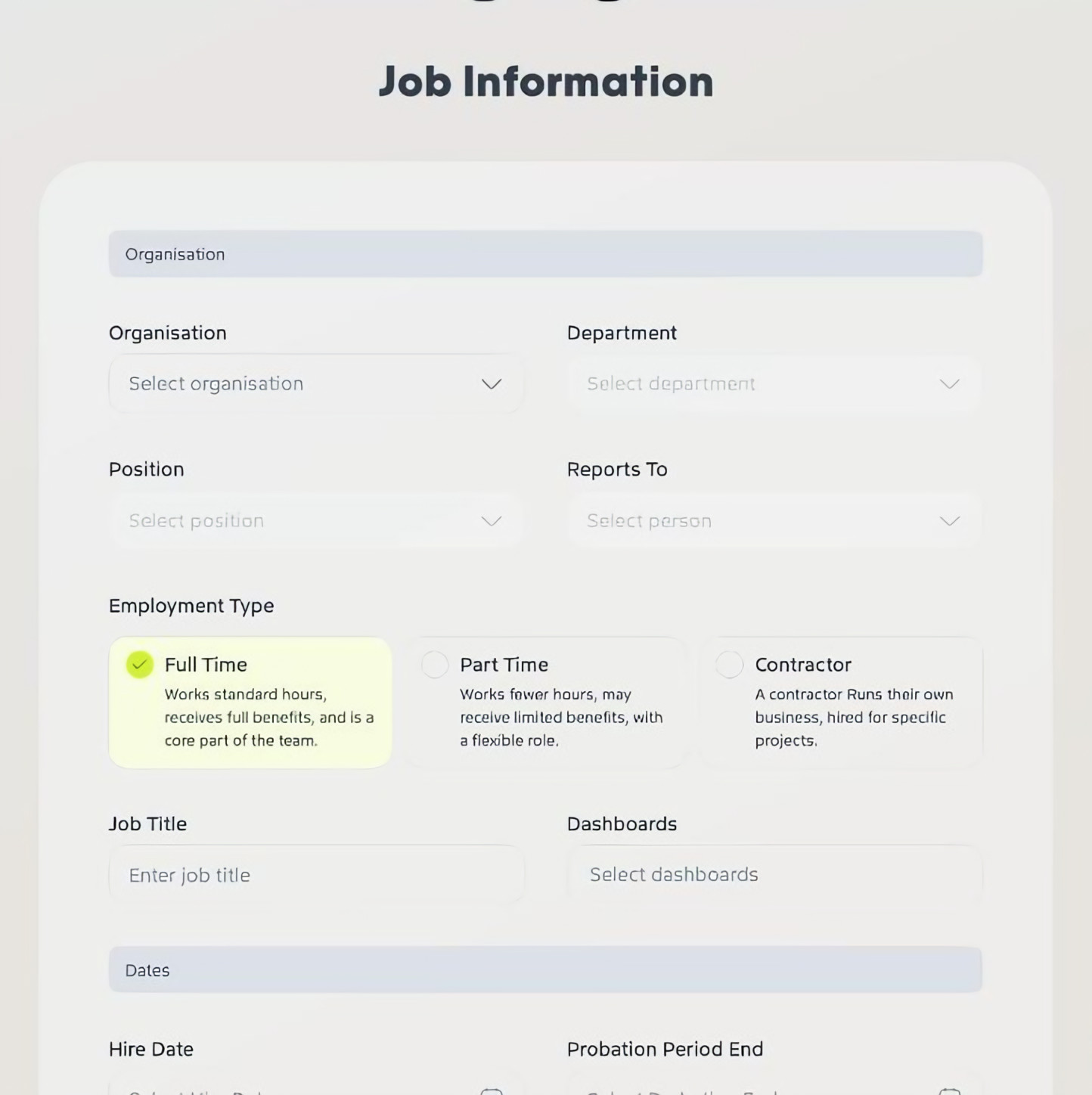
- Organisation, Department, Position and who they Report To
- Employment Type – Full Time, Part Time or Contractor
- Job Title and the Dashboards they can use
- Dates – Hire Date and Probation Period End
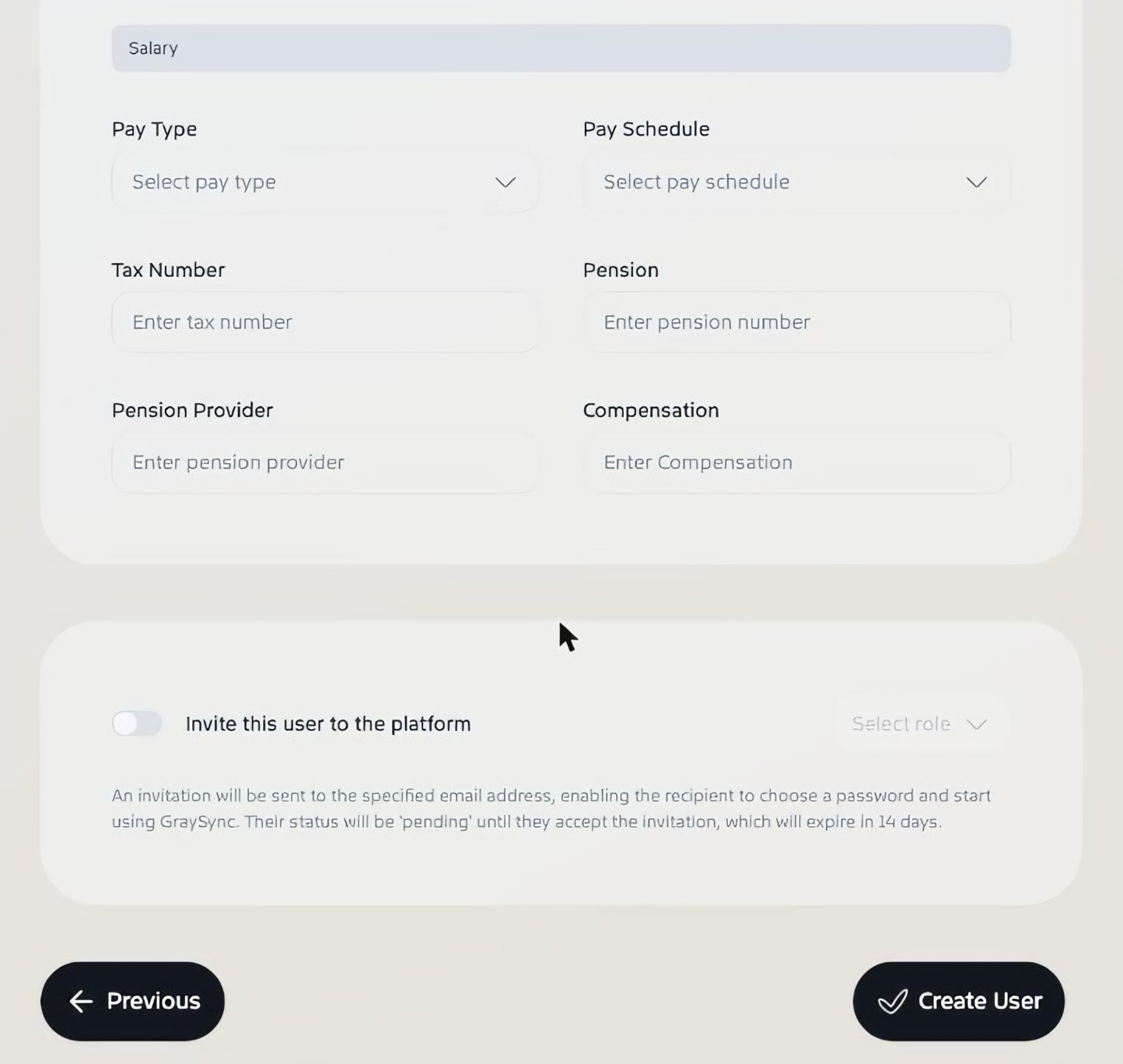
- Salary – Pay Type, Pay Schedule, Tax Number, Pension, Pension Provider and Compensation
Step 4: Send the invitation
- Turn on Invite this user to the platform.
- Choose their role. Pick an organisation in the job details first, as the roles depend on it.
- Click Create User.
Graysync emails them an invitation to choose a password and start using Graysync. Their status shows as pending until they accept, and the invitation expires after 14 days. If you leave the toggle off, the user is created but no invitation is sent.
Tip: control what people can see
Access in Graysync is managed with permission levels, such as Employee Level, Manager Level, Finance Level, High Management Level and Organisation Owner. You’ll find them, and can create your own, under the apps menu → Permissions.