Find your way around Graysync
The top menu
Everything in Graysync starts from the menu bar at the top of the screen. It stays in the same place on every page, so you can jump between areas without losing your way.
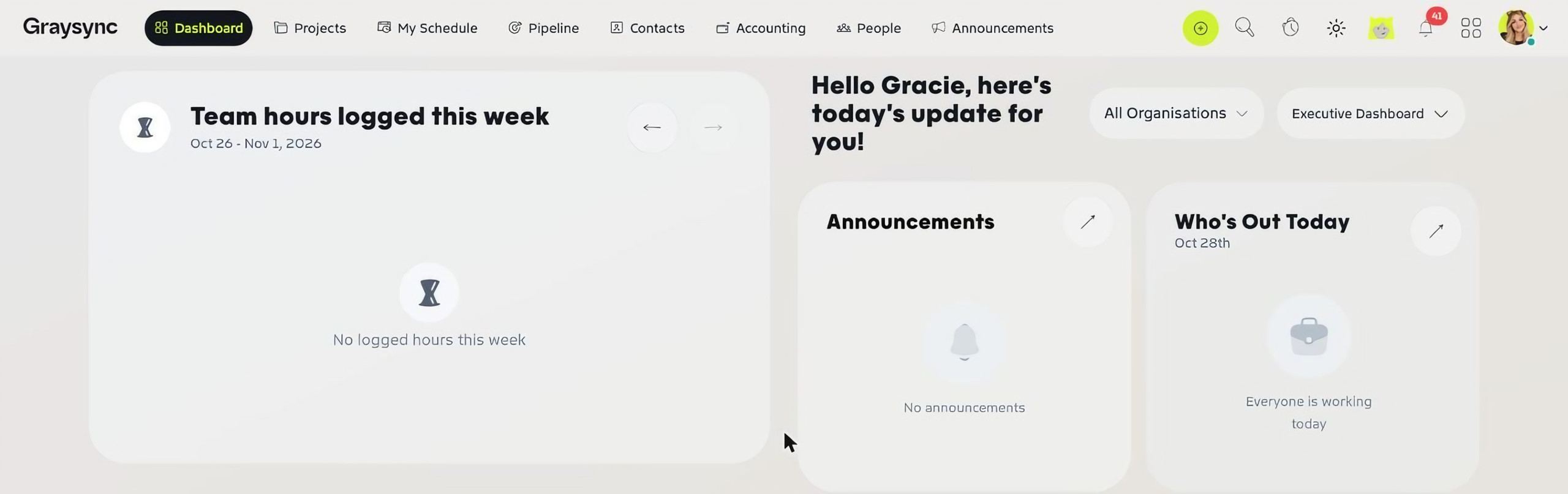
- Dashboard – your daily overview, with Executive, Manager and Employee views.
- Projects – client projects, plus Internal and Inactive projects.
- My Schedule – the tasks assigned to you, and Ad-hoc Tasks that sit outside a project.
- Pipeline – your leads and service scopes, from Lead In through to Signed.
- Contacts – Customers, Suppliers and Media Vendors.
- Accounting – Invoices, Expenses, Bank Accounts and Employee Loans.
- People – Users, Timesheet, Resourcing, Leave Requests, Feedback, Assessments, Payroll and Hiring.
- Announcements – news and updates for your team.
On smaller screens the menu shrinks to icons only, but the order stays the same.
Create anything with Quick Add
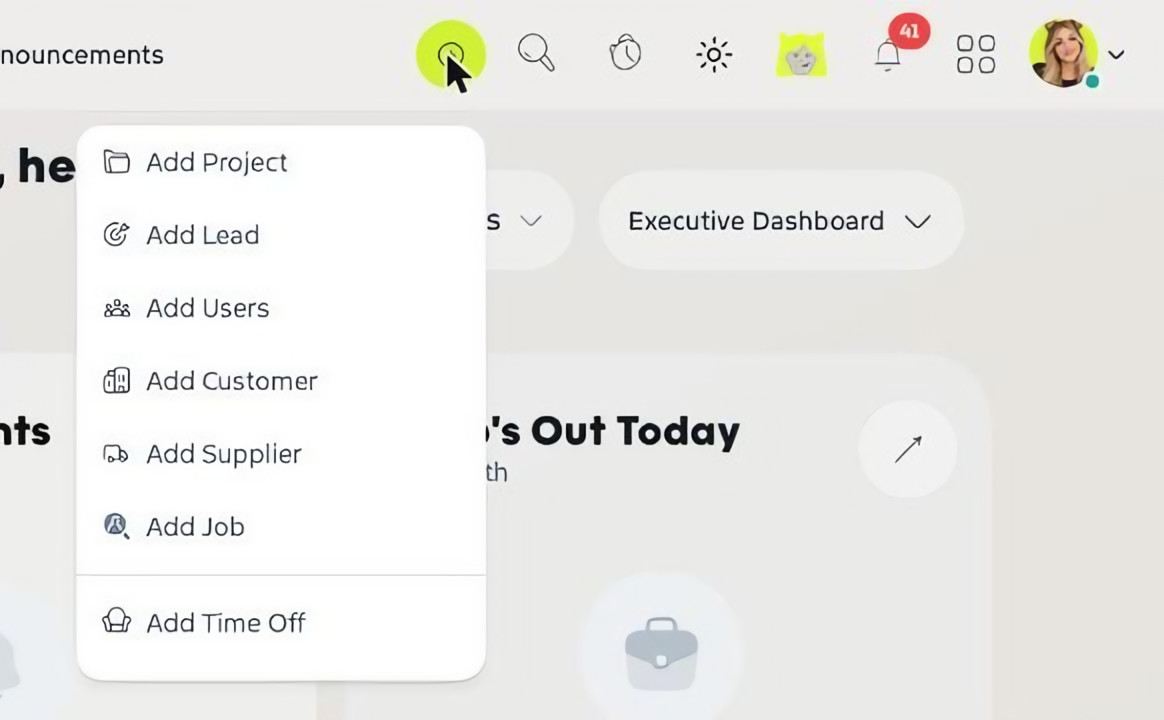
The green + button on the right of the menu bar is the fastest way to create something new from any page. Choose Add Project, Add Lead, Add Users, Add Customer, Add Supplier, Add Job or Add Time Off.
Search, timer, Gracie and notifications
Next to Quick Add you’ll find a few tools you’ll use every day:
- Search (magnifying glass) – find what you need quickly.
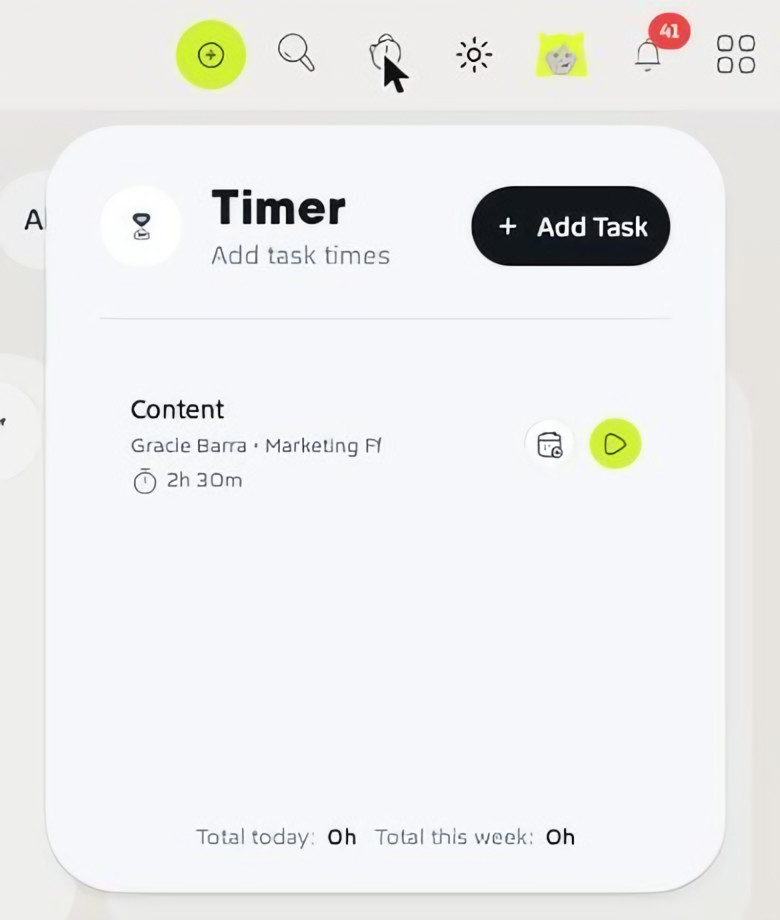
- Timer (clock) – start and stop time on your tasks. The panel lists your tasks with a play button, shows your total for today and this week, and lets you time something new with + Add Task.
- Theme (sun) – switch between light and dark mode.
- Gracie – your AI assistant. Ask things like “What are my tasks?” or “Which invoices are overdue?”. Gracie can look up projects, customers, scopes and announcements, but can’t create or change records yet.
- Notifications (bell) – your latest updates. The red badge shows how many are unread.
The apps menu
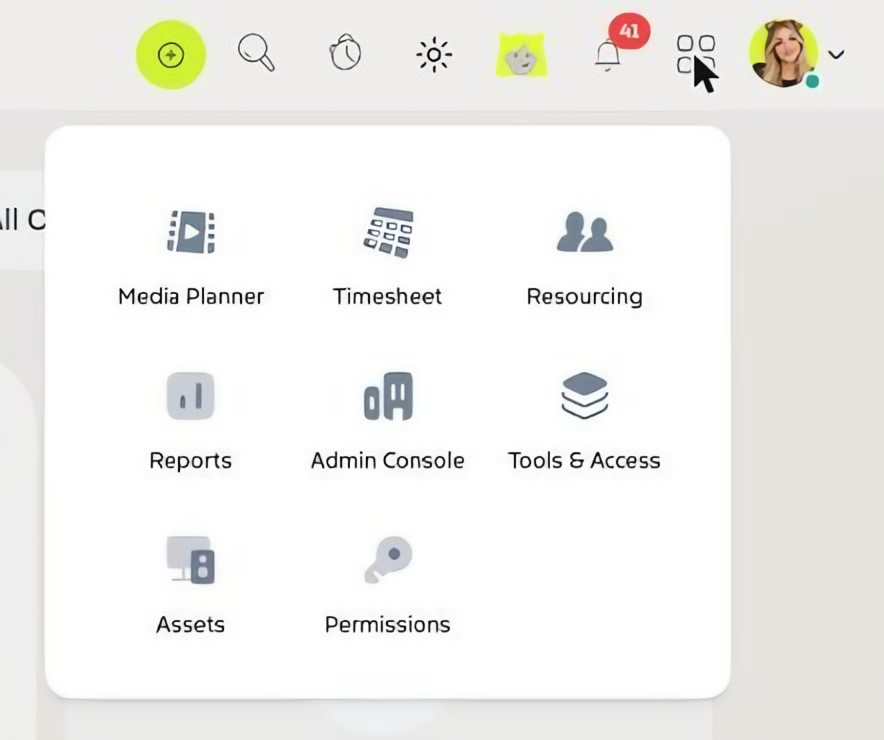
The grid icon opens shortcuts to tools you’ll use less often: Media Planner, Timesheet, Resourcing, Reports, Admin Console, Tools & Access, Assets and Permissions.
The Admin Console is where your organisation settings live. See Set up your organisation to get it ready.
Your profile menu
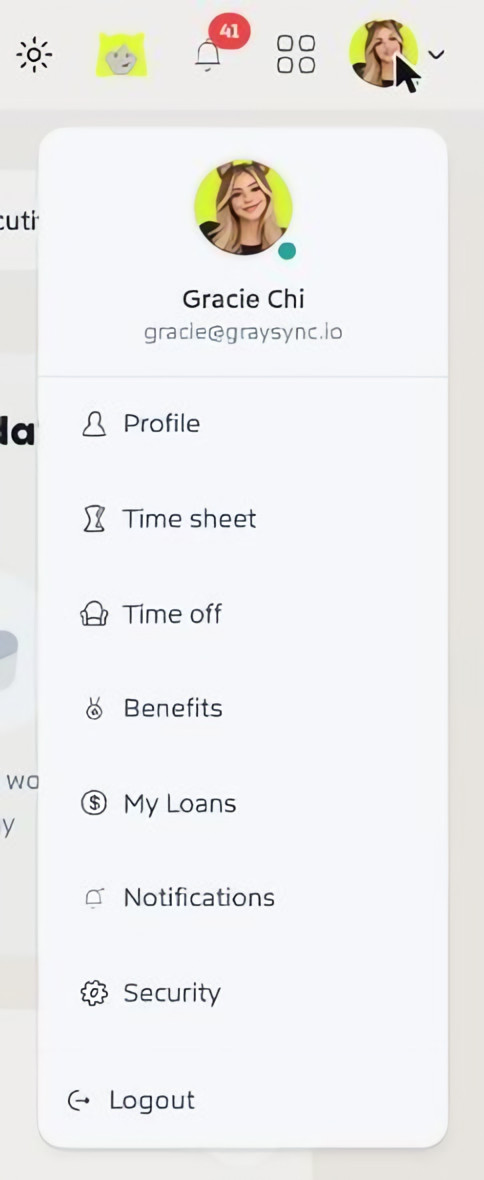
Click your photo in the top-right corner to open your own Profile, Time sheet, Time off, Benefits, My Loans, Notifications and Security settings, or to Logout.