

Step 2: Scope a project with a quote
Scopes and the Pipeline
In Graysync, a quote is called a scope. Scopes start as leads in the Pipeline, where you track them through the stages Lead In, Scoping, Proposal Sent, Negotiation and Signed, and see them as Active, Won, Lost or Deferred. The overview at the top shows your funnel, open opportunities, sales by organisation and sales activity.
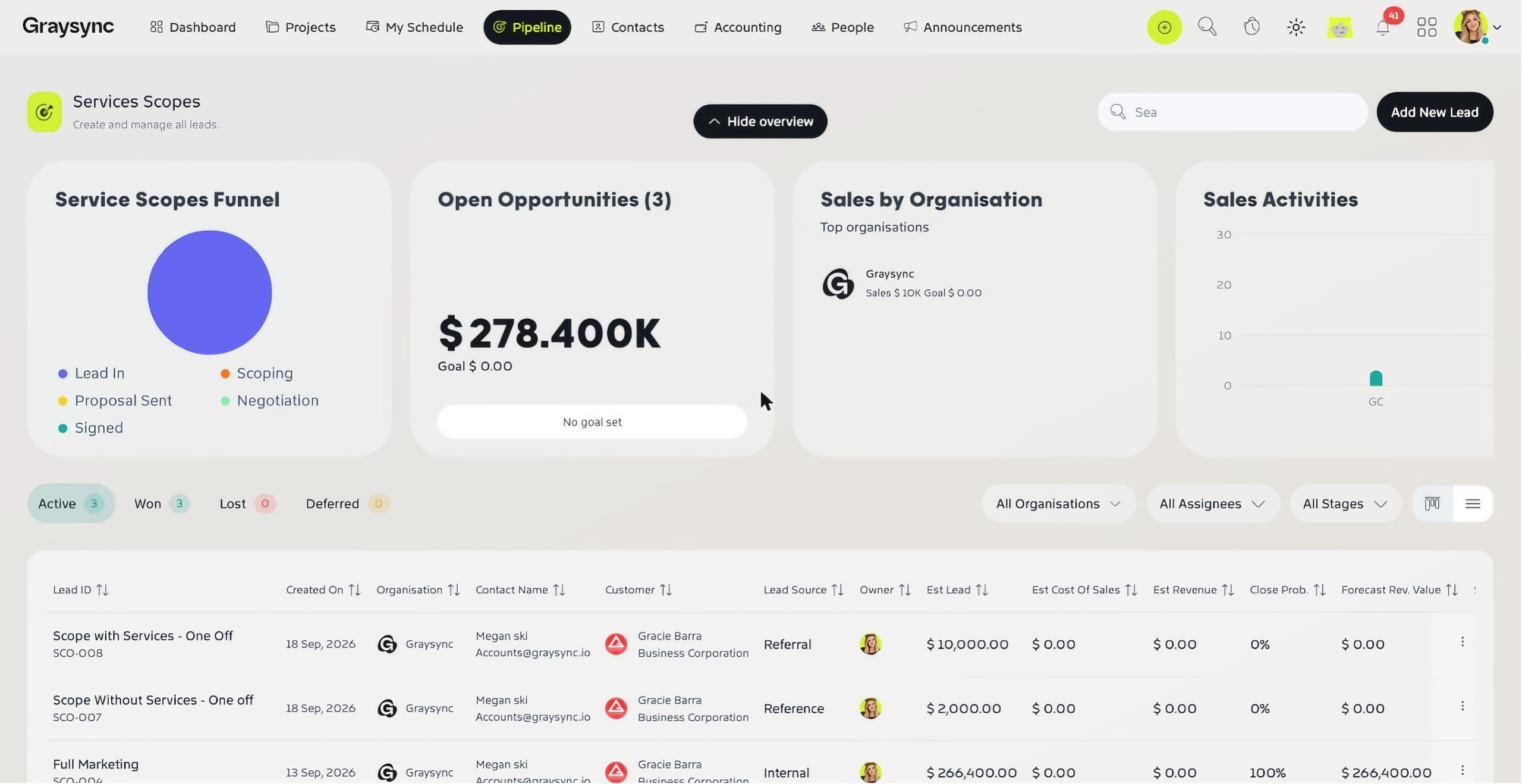
Step 1: Add the lead
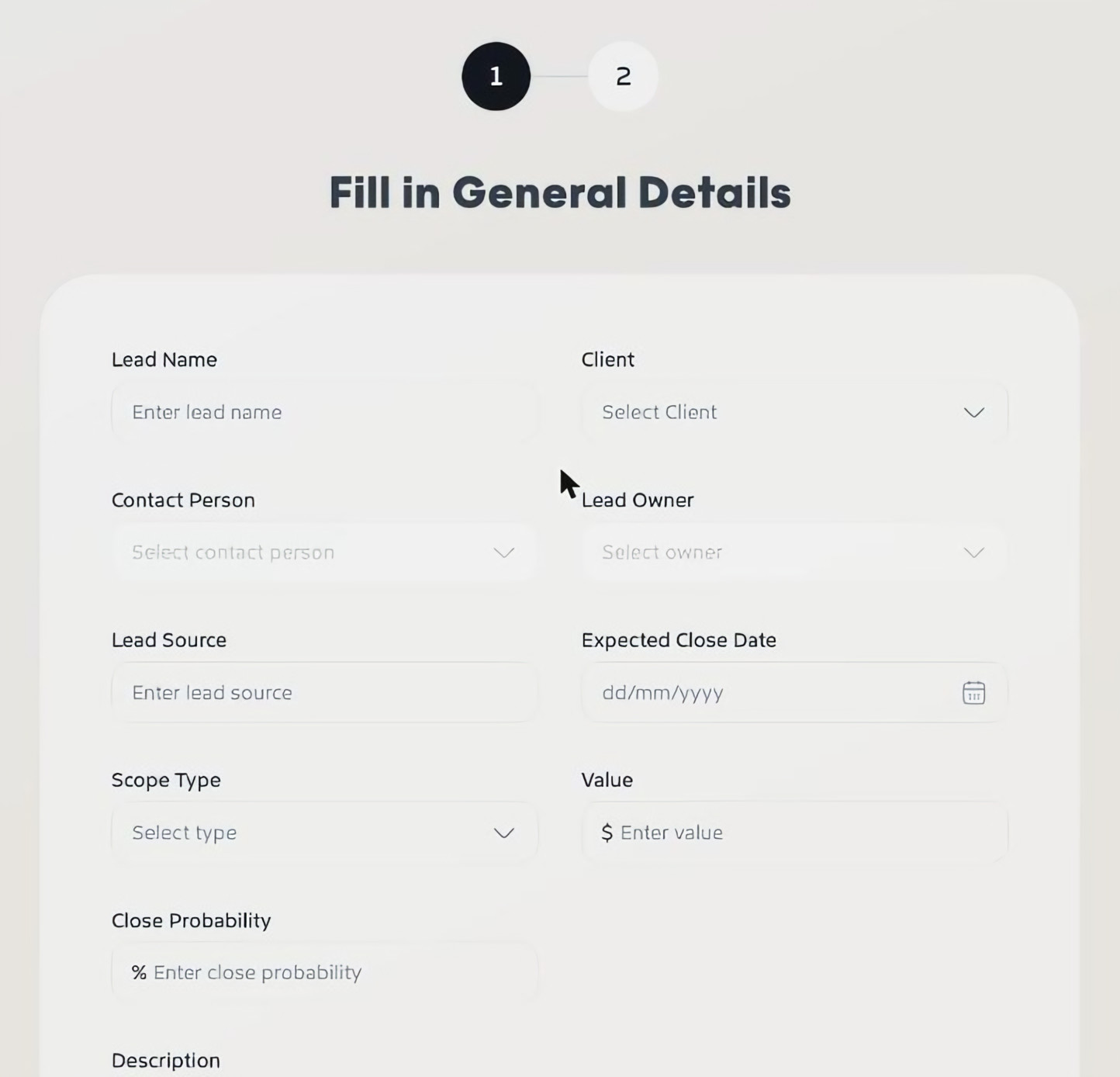
Go to Pipeline and click Add New Lead (or Quick Add → Add Lead). Fill in:
- Lead Name and Client (or + Add new company)
- Contact Person and Lead Owner
- Lead Source and Expected Close Date
- Scope Type – One-Off, Recurring or Production
- Value, Close Probability and a Description
When you pick the client, Graysync fills in the contact person, lead owner and an expected close date for you. Change them if you need to.
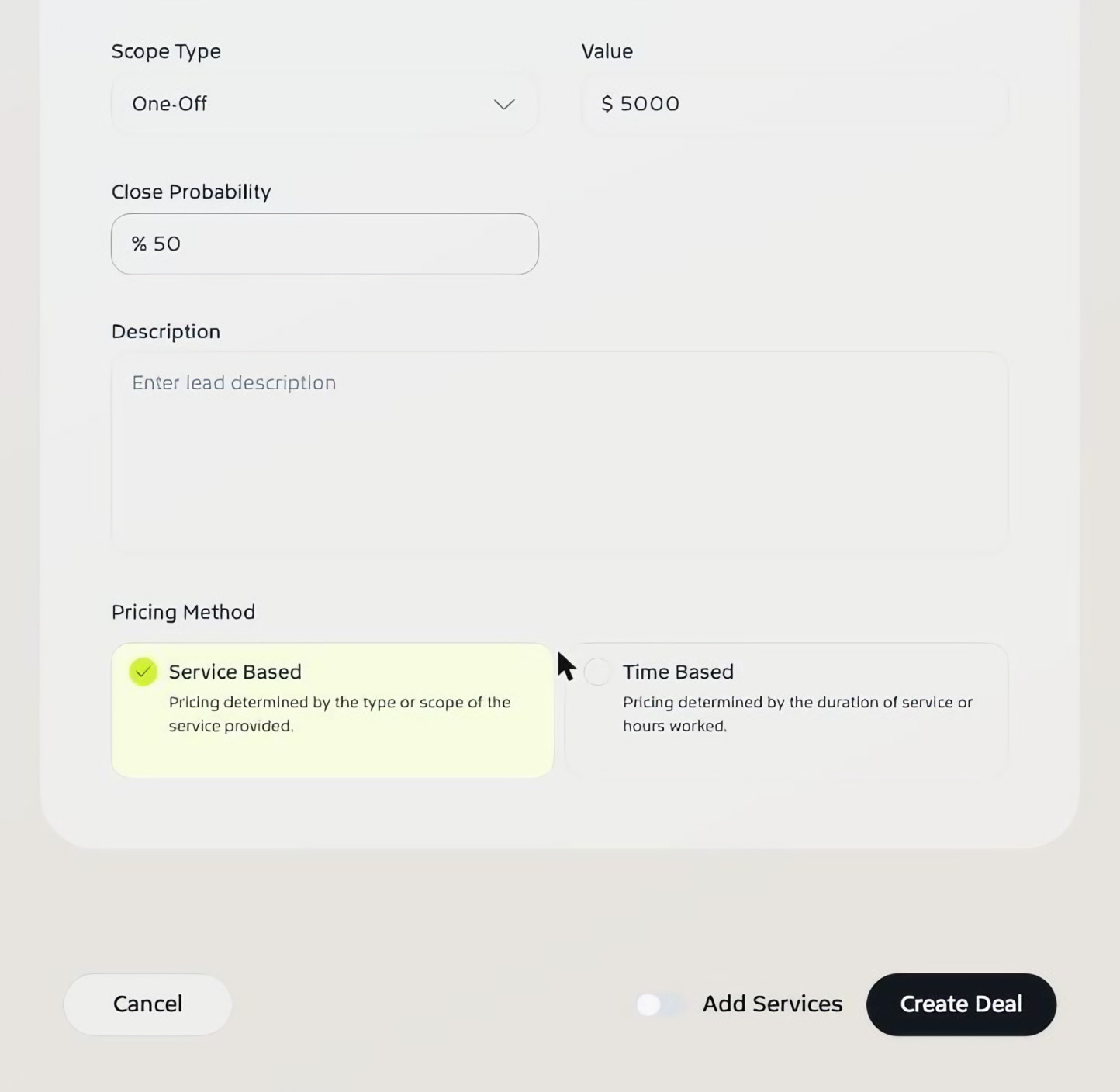
Step 2: Choose a pricing method
Pick Service Based (priced by the type or scope of the service) or Time Based (priced by the time or hours worked).
To build the scope now, turn on Add Services and click Next. If you only want to record the lead for now, leave it off and click Create Deal.
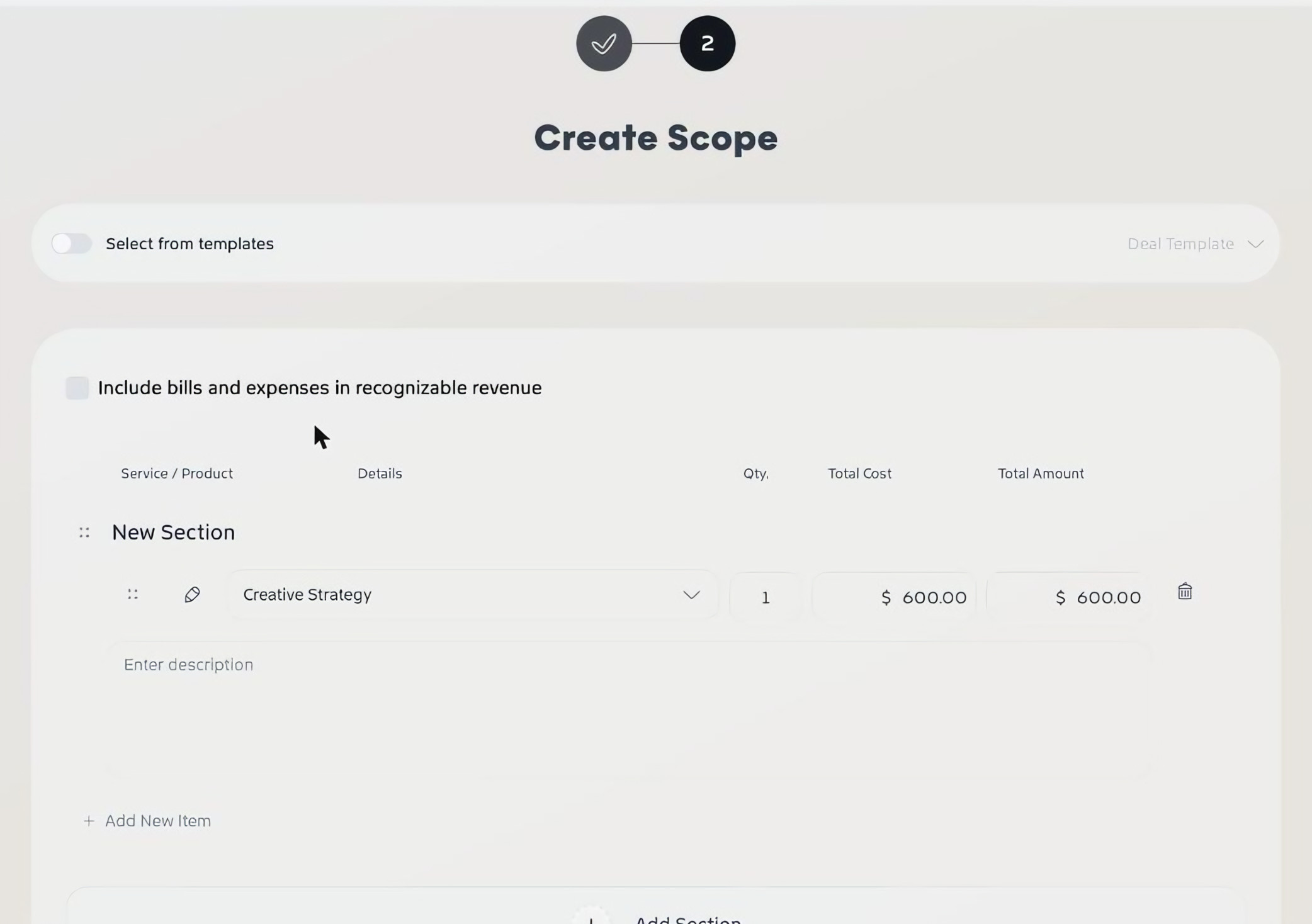
Step 3: Build the scope
- To start from a saved scope, turn on Select from templates and choose a Deal Template.
- Click Add Section to group your work, for example by phase or deliverable.
- Choose a service in each row. Graysync fills in the price from your service list. Adjust the Qty, cost and description as needed.
- Use Add New Item for more lines and Add Section for more groups.
- Tick Include bills and expenses in recognizable revenue if it applies to this scope.
- Tick Save as template if you’ll reuse this scope, then click Create Deal.
Step 4: Review, preview and send
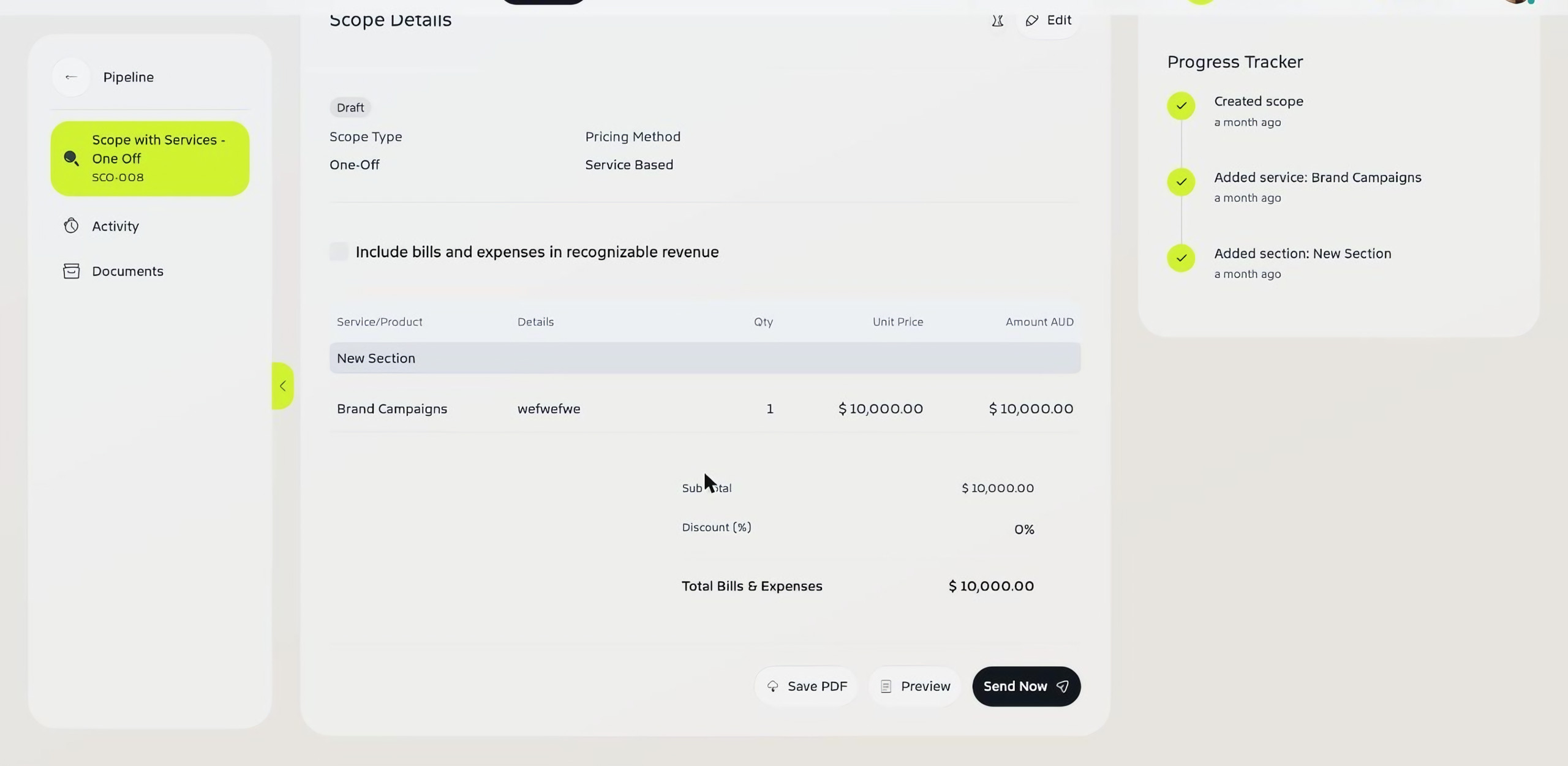
Your scope opens with its General Details, Scope Details (sections, services, subtotal, discount and total) and a Progress Tracker that records each change. Click Edit on either section to make changes.
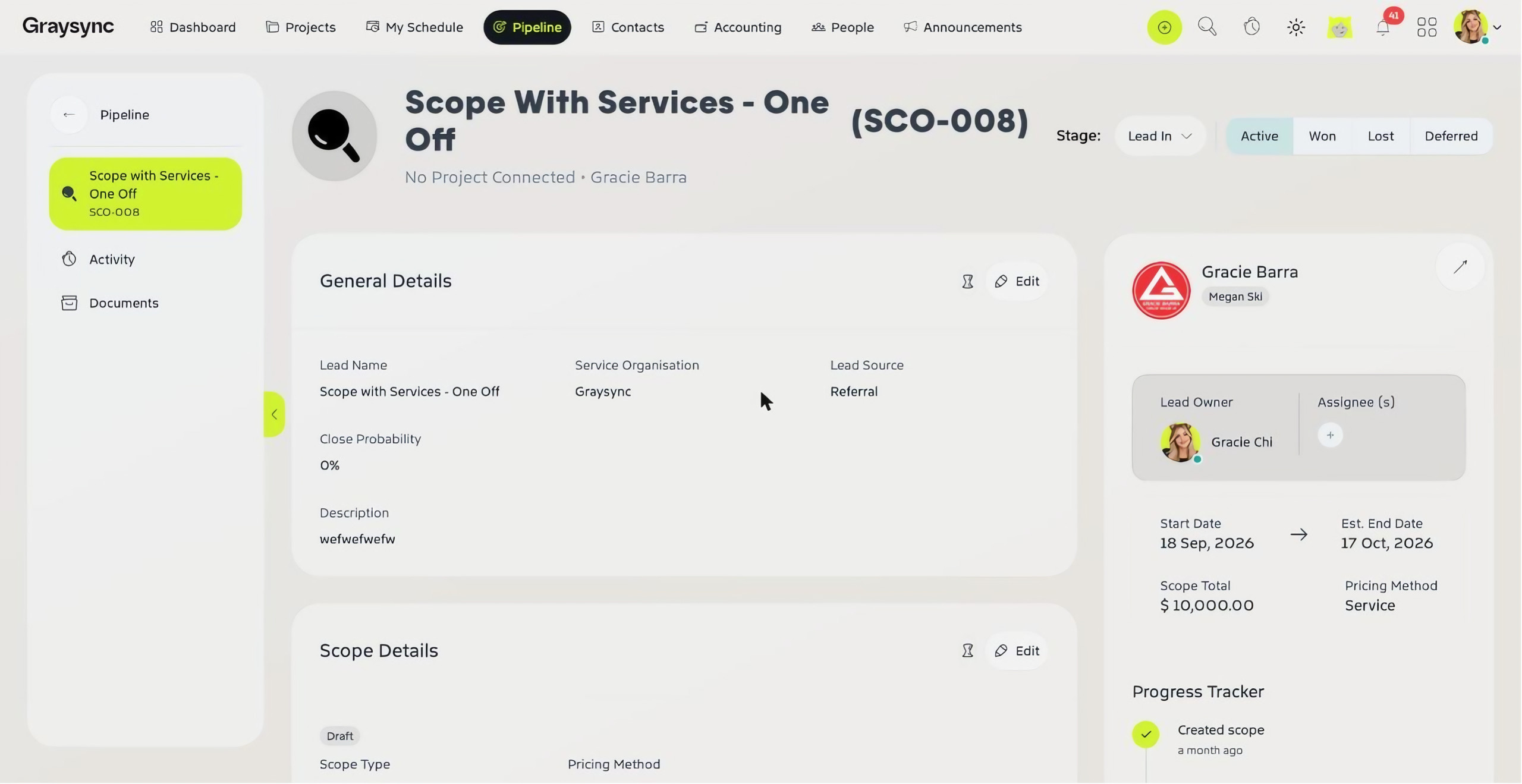
When it’s ready:
- Preview – check what your client will see.
- Save PDF – download a copy.
- Send Now – email it to your client.
Update the Stage as the deal moves forward, and mark it Won when your client signs.
Tip: set up your services first
The services you can add to a scope, and their prices, come from Admin Console → Project → Services. You can also give each service predefined tasks, so projects start with the right task list.