

Step 1: Overview of project management
How work flows in Graysync
Most agency work follows the same path, and Graysync keeps every step connected:
- Customer – who the work is for.
- Scope – what you’ve agreed to deliver and for how much, managed in the Pipeline.
- Project – where the work is planned and delivered.
- Tasks and time – your team works through tasks and logs time against them.
- Budgets, expenses and invoices – keep the numbers on track and get paid.
Find your projects
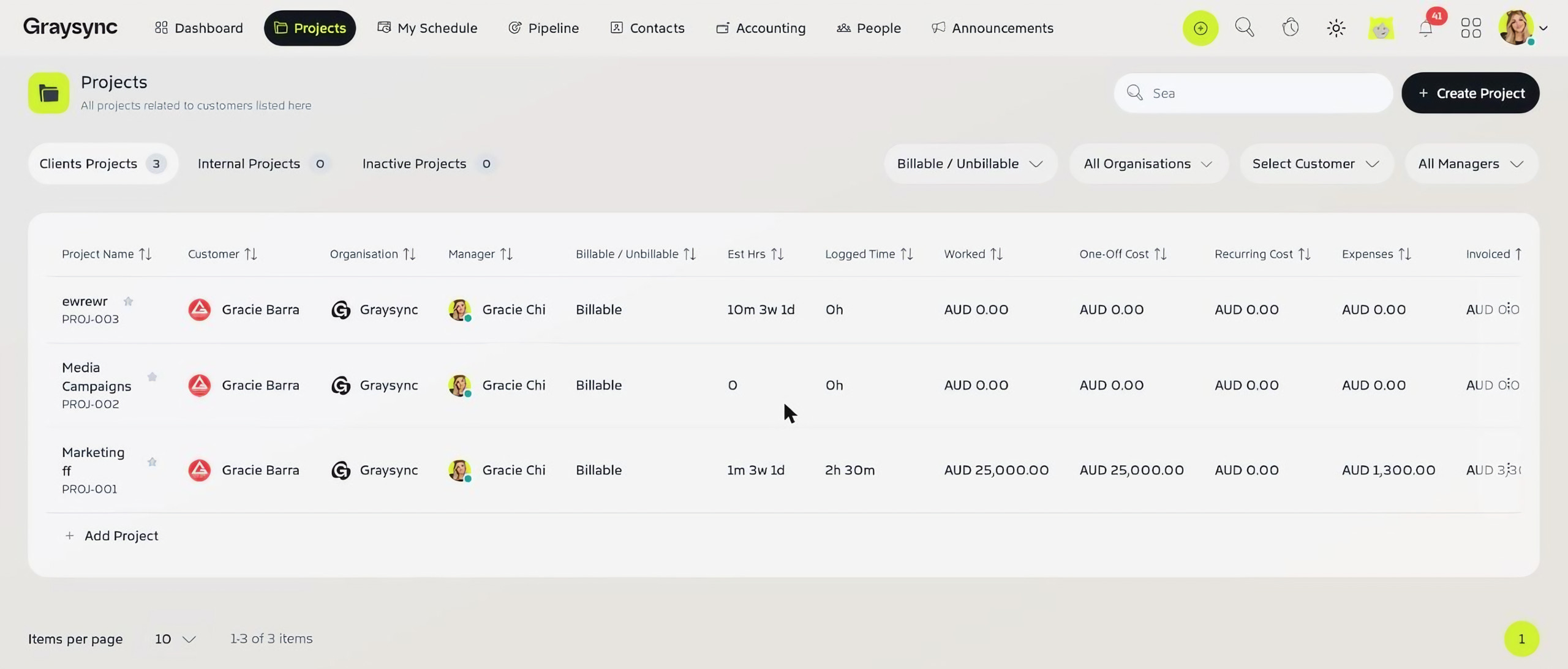
Go to Projects to see each project with its customer, organisation, manager, billable status, estimated hours, logged time, worked value, one-off and recurring cost, expenses and invoiced amount. Use the tabs to switch between Clients Projects, Internal Projects and Inactive Projects, and filter by billable or unbillable, organisation, customer or manager.
Create a project
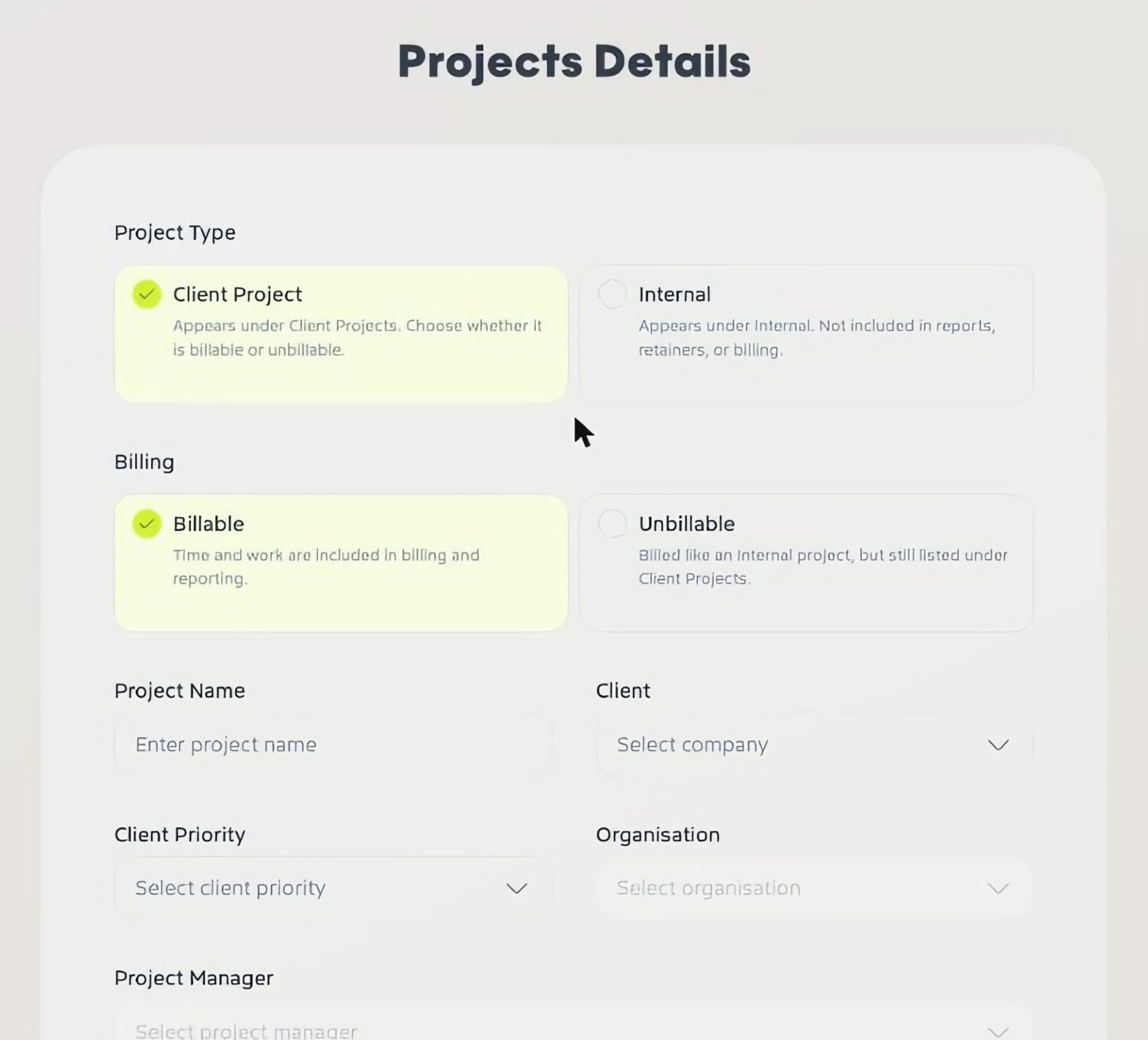
Click Create Project (or Quick Add → Add Project) and choose:
- Project Type – Client Project (listed under Client Projects) or Internal (not included in reports, retainers or billing).
- Billing – Billable (time and work are included in billing and reporting) or Unbillable.
- Project Name, Client, Client Priority, Organisation and Project Manager.
- The status and priority templates to use for services and media.
- Project Access – Default (all team members with the right permissions can view it) or Members Only.
Add a Project Description and click Create Project.
Inside a project
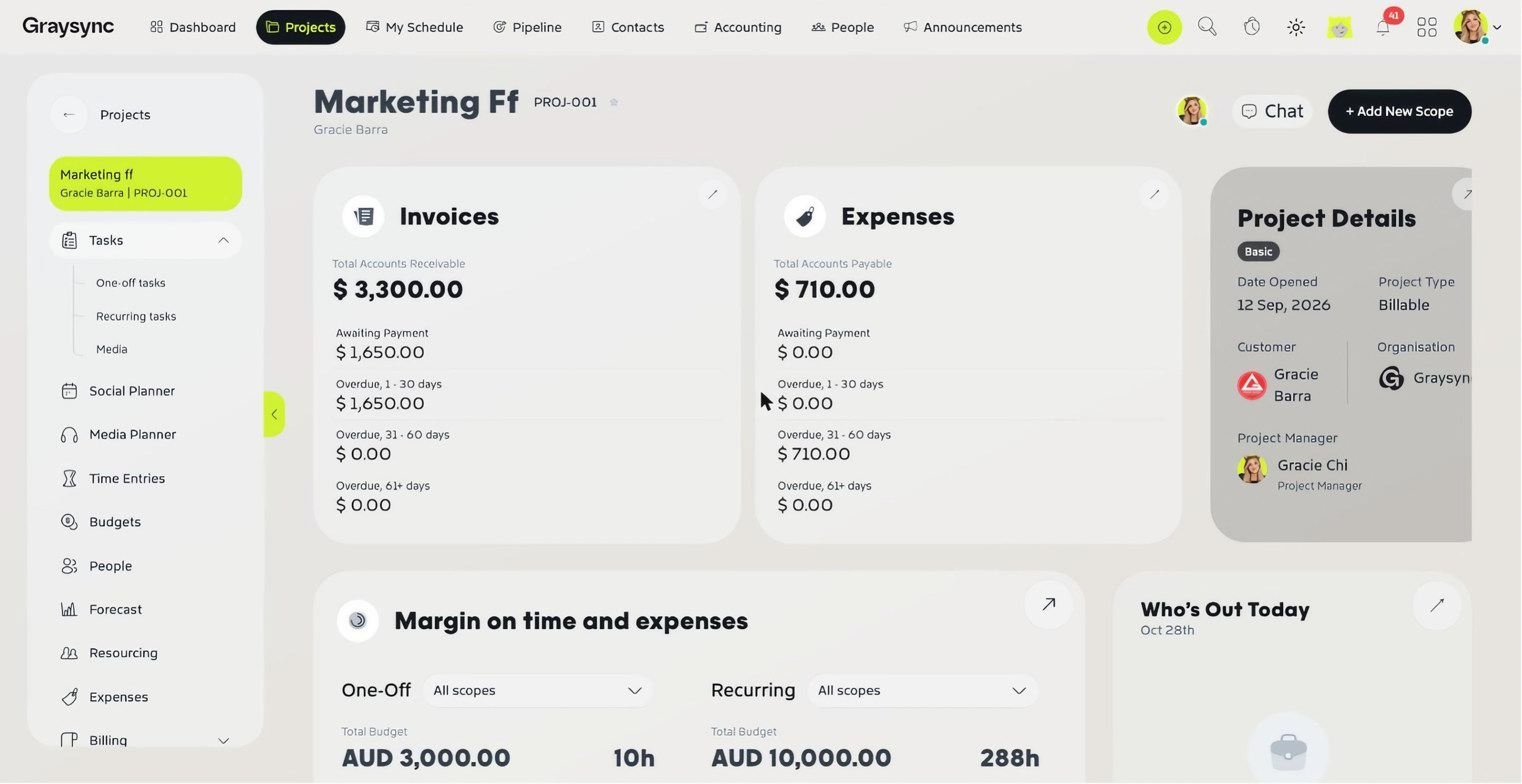
Each project has its own workspace. The overview shows invoices and expenses, project details, margin on time and expenses by scope, who’s out today, your daily tasks and the project’s Workstream.
Use the left-hand menu to move around the project:
- Tasks – One-off tasks, Recurring tasks and Media
- Social Planner and Media Planner
- Time Entries, Budgets, Forecast and Resourcing
- People, Expenses and Billing
- Scoping, Documents, Feedback, Logs, Briefing and Project Info
Use + Add New Scope to add more work to the project, and Chat to talk with the project team.
Next step
Now learn how to scope a project with a quote.