

Track time on tasks
Use the timer
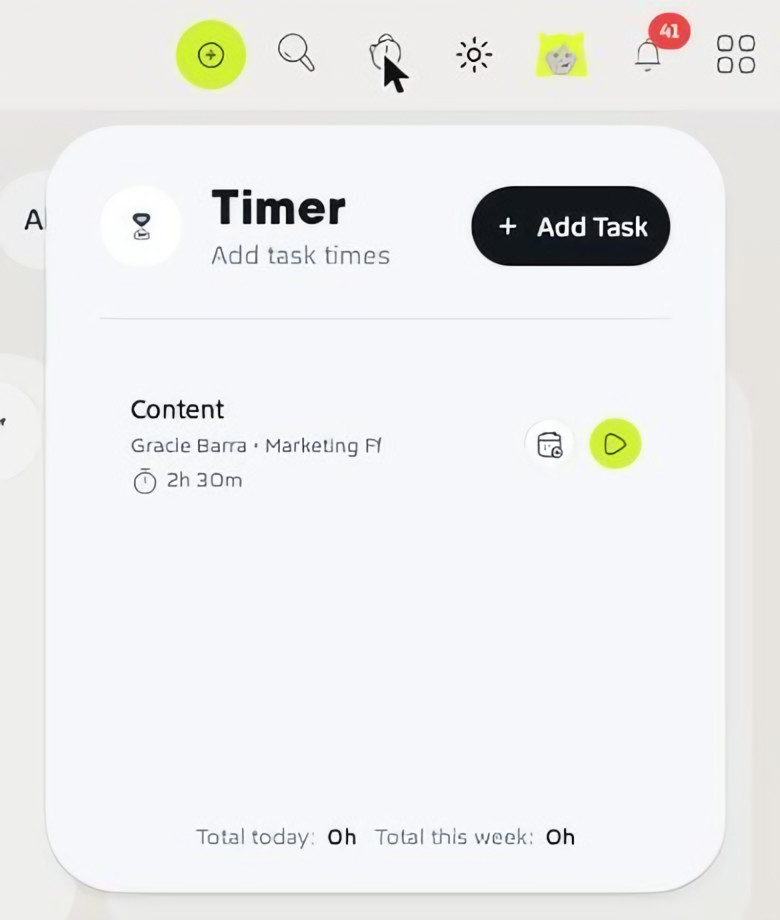
Click the Timer (clock icon) in the top menu to see your tasks. Press play on a task to start timing it, and press it again when you’re done. The panel shows your total for today and this week, and + Add Task lets you time something new. You can also click Start Time Tracker inside any task.
Add time manually
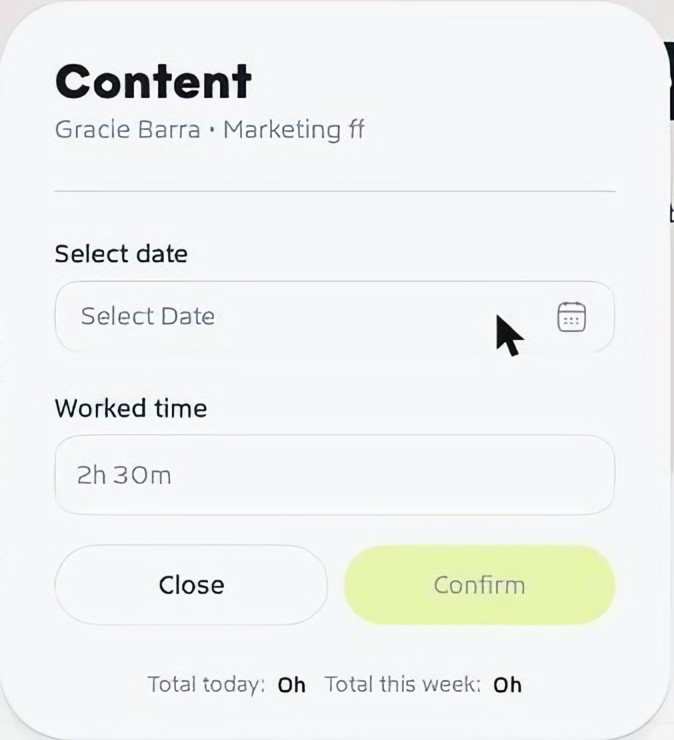
- Open the Timer.
- Click the calendar icon next to the task.
- Choose the date and enter your Worked time, for example 2h 30m.
- Click Confirm.
See the time on a task
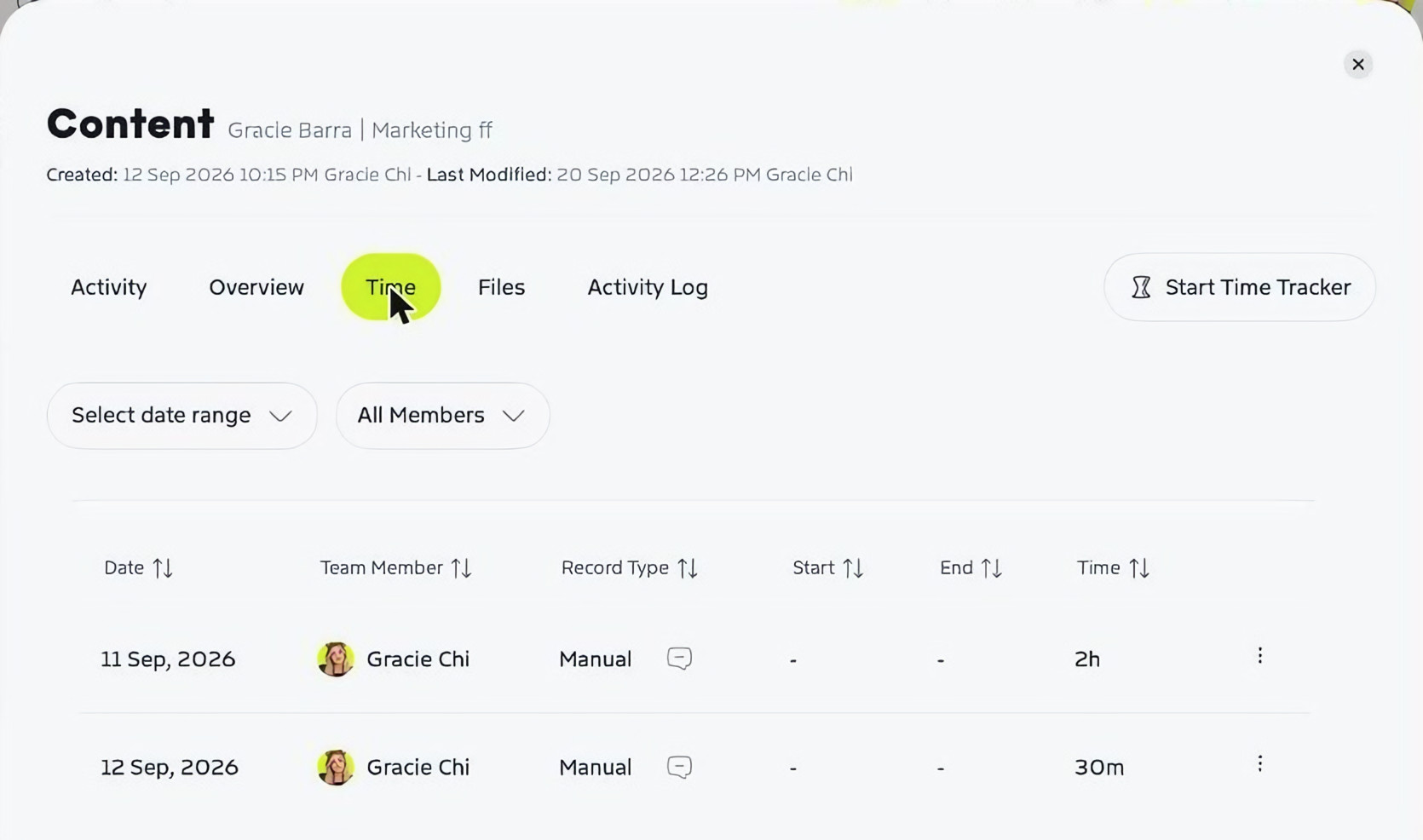
Open a task and choose the Time tab to see each entry’s date, team member, how it was recorded, start and end times and duration. Filter by date range or team member.
Review a project's time
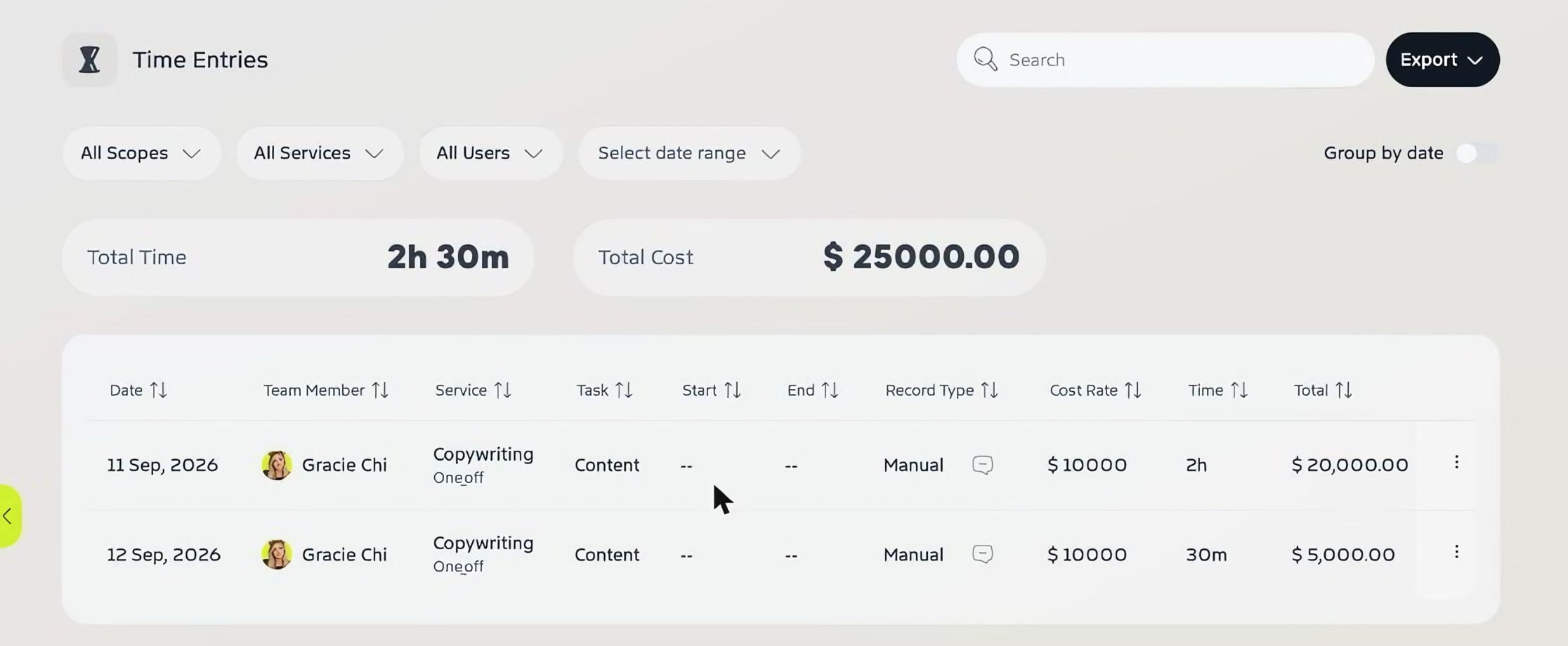
In a project, open Time Entries to see the total time and total cost, plus every entry with its service, task, cost rate and total. Filter by scope, service, user or date range, turn on Group by date, or click Export.
See time across your team
Go to People → Timesheet for a team-wide view of weekly work time (billable and non-billable), time by team, tracked versus untracked time and time by project. To see just your own hours, open your profile menu and choose Time sheet.