

Work with one-off and recurring tasks
Where tasks live
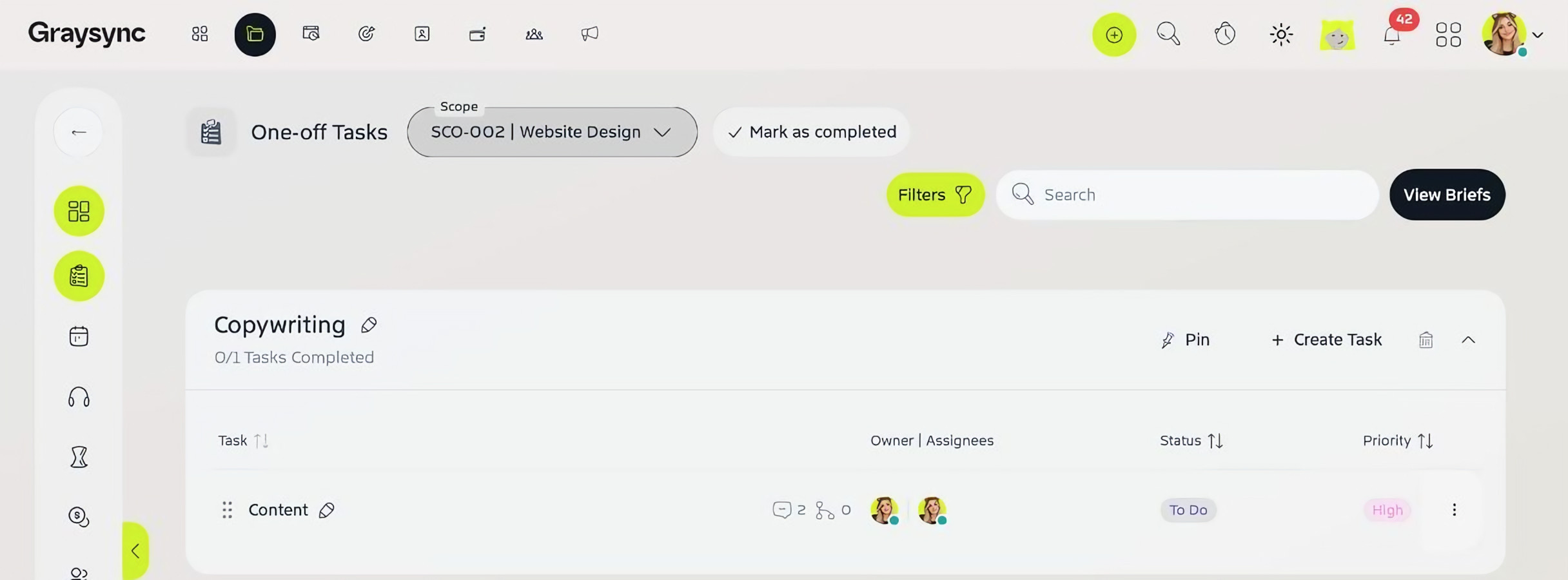
In a project, open Tasks in the left-hand menu. You’ll find three task lists:
- One-off tasks – work that’s done once, such as a website build.
- Recurring tasks – work that repeats each period, such as a monthly social media retainer.
- Media – tasks for media work.
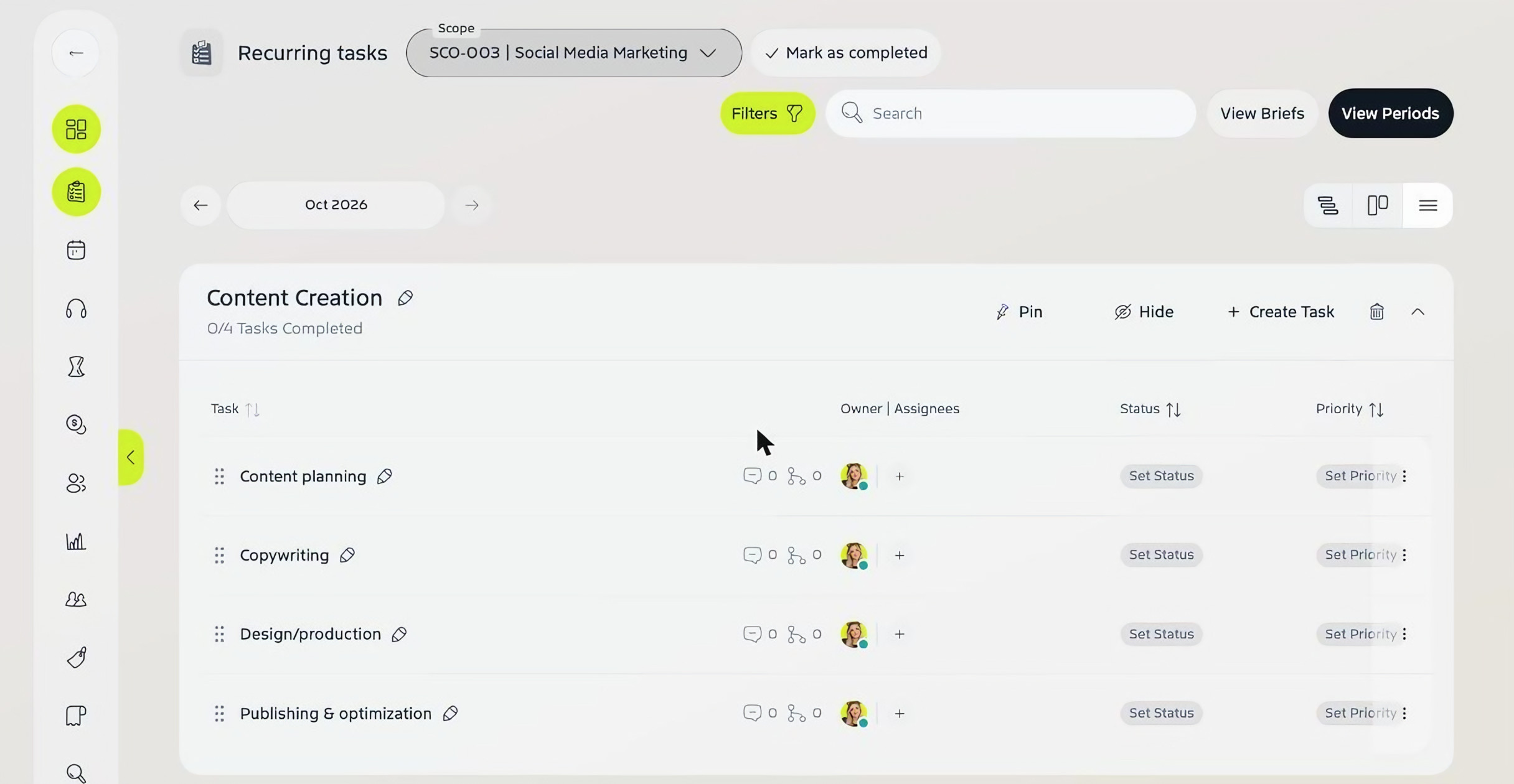
Use the Scope selector at the top to switch between the project’s scopes. Tasks are grouped by service, and each group shows how many tasks are complete. Use Filters to narrow the list by service, status, priority, assignee or due date.
Add a task
Click Create Task on a service group. A new row appears: type the task name, then add the owner and assignees and set the status, priority, start date and due date.
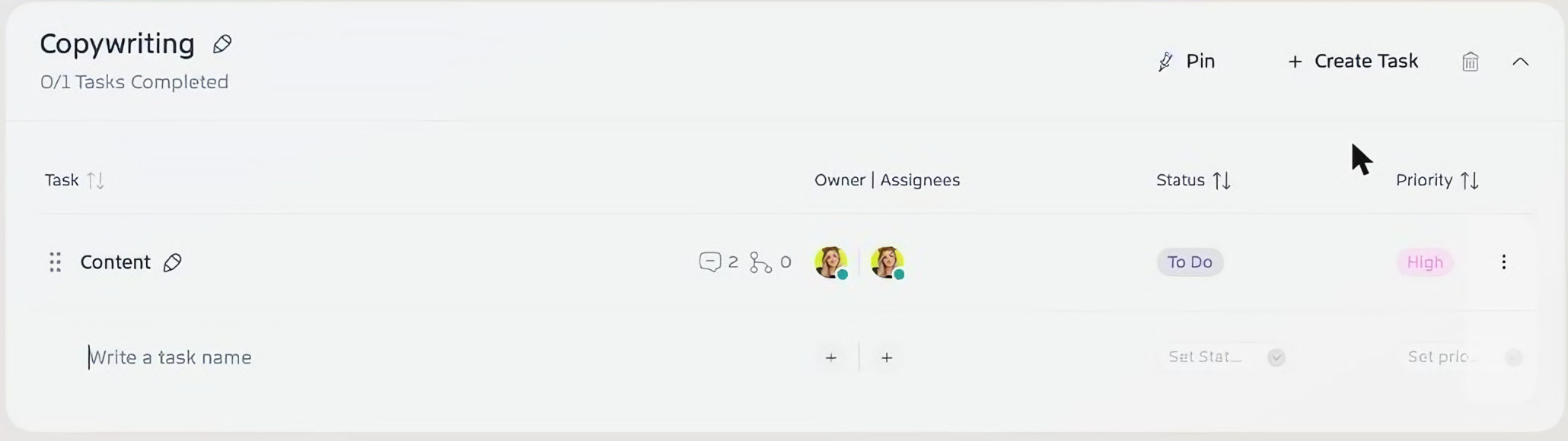
If you set up predefined tasks for a service, they’re added for you when the service is used in a project. See Set up services with predefined tasks.
Open a task
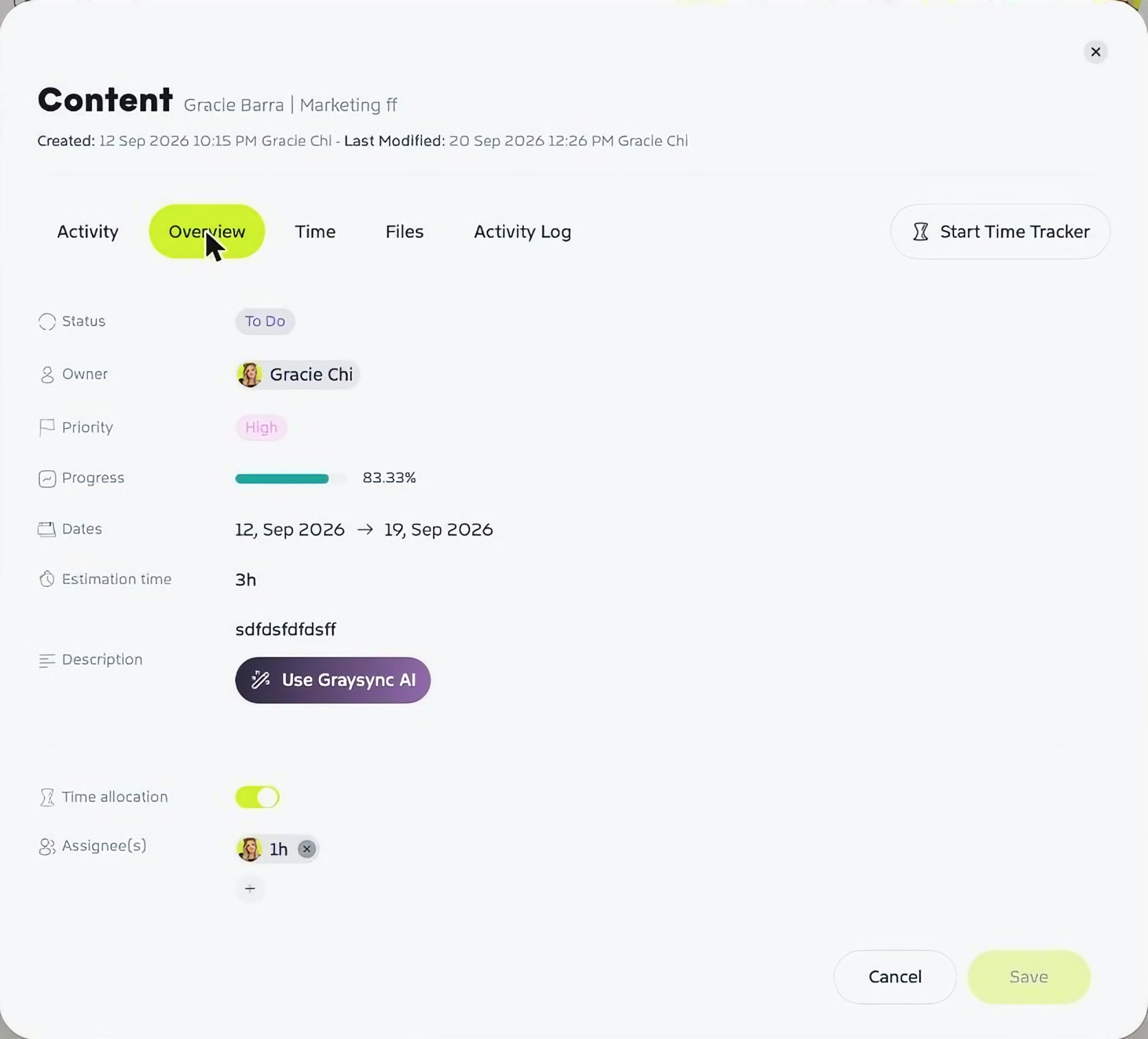
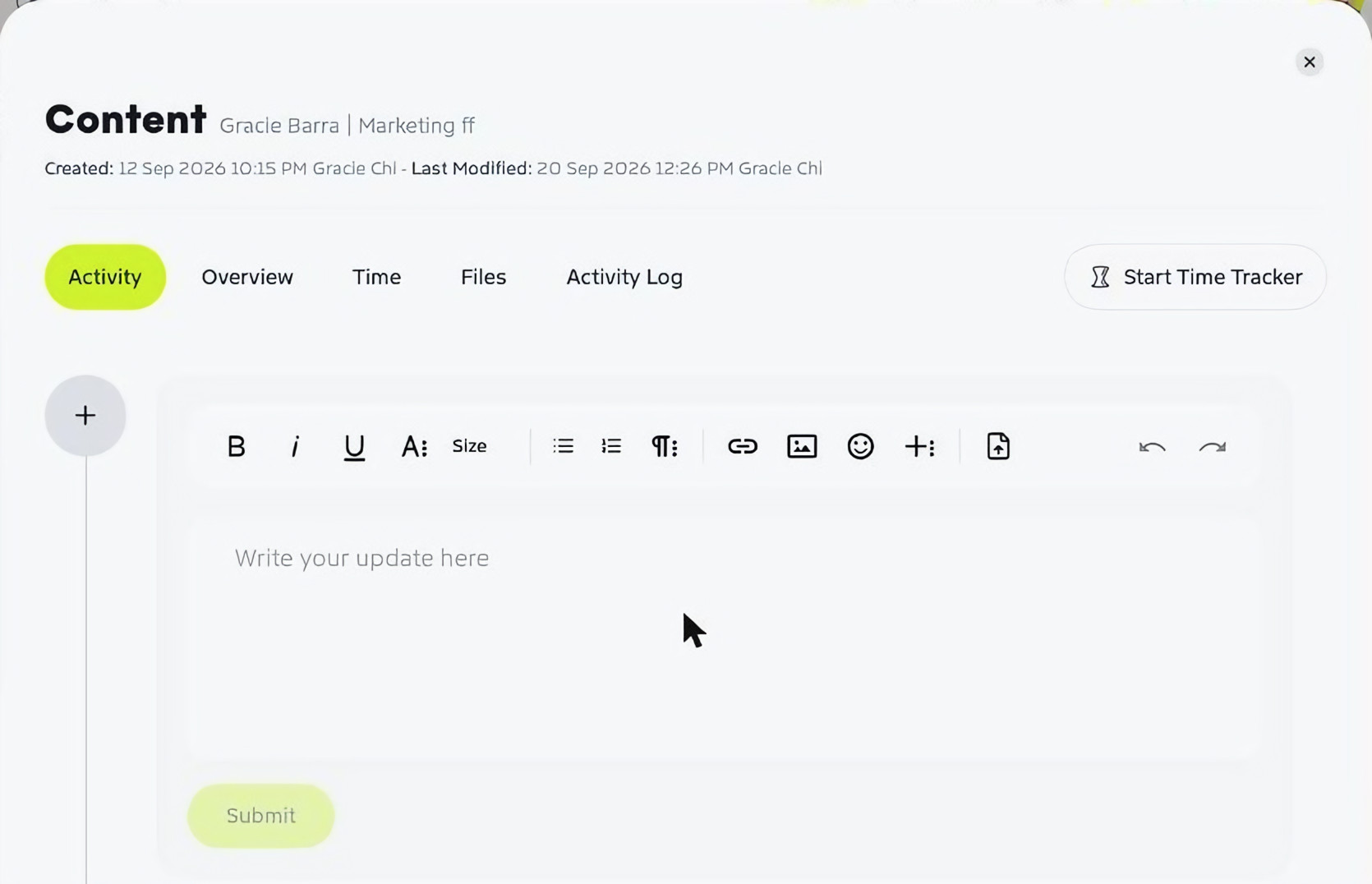
Click a task name to open it. Each task has five tabs:
- Activity – post updates with formatting, links, images and files, and @mention a teammate, everyone in the task or everyone in the project.
- Overview – the task’s status, owner, priority, progress, dates, estimated time and description. Use Use Graysync AI to help write the description, turn on Time allocation to split the hours between assignees, then click Save.
- Time – every time entry logged on the task.
- Files – files attached to the task.
- Activity Log – a history of every change, such as status or estimate updates.
Click Start Time Tracker to start timing the task straight away.
Recurring tasks
Recurring tasks are planned month by month. Use the arrows next to the month to move between periods, and View Periods to see them all. Switch between the timeline, board and list views with the icons on the right. In the timeline view you can also Share Timeline.
Tips
- Pin a service group to keep it at the top of the list, or Hide it in recurring tasks.
- View Briefs shows the briefs linked to the project.
- Your tasks from every project also appear in My Schedule.